OBS
Open Broadcaster Software (OBS) is a free and open-source cross-platform streaming and recording program built with Qt and maintained by the OBS Project (also known as OBS Studio). This is the base of all recording apps on Overwolf.
The OBS log provides information about the following:
- System information—system information including:
- CPU.
- Memory.
- Windows version and build.
- Running as Admin.
- Active security software (Antivirus, Firewall, etc.).
- Available video adapter and settings—video information including:
- GPU name.
- Driver version and adapter.
- Input and output audio devices—information about the current system default or the user selected devices:
- Device status (enabled or disabled).
- Volume settings.
noteIf the devices are changed during the session this change will not be saved during the current recording
- Recording start.
- Recording settings.
To access the OBS logs:
- Press the Windows Key + R, then in type
%LOCALAPPDATA%\Overwolf\Login the dialog box. This opens the path to the log files. - To identify the latest OBS log file, look for a file name with the following pattern
ow_obs_<yyyy-mm_dd_hh-mm-xx-pxxxxx.txt(e.g.,ow_obs_2025-09-02_08-14-05-p41664.txt). - Open the file with your preferred text editor to view it's contents.
Recording issues checklist
When investigating recording issues:
- Make sure that the user follows the troubleshooting steps in the Common Capture Issues article.
- Go through OBS logs and check for errors such as the users devices not being recognized or out of date, high resource usage (Such as CPU, RAM or GPU) or encoding errors.
- Check in the trace logs or OBS logs if hardware accelerated GPU is enabled. This will appear as
OS: HAGSEnable: True. If it is enabled, disable it using Visual Artifacts in Overwolf Apps (Hardware Acceleration) article. - In order to test if the issue is related to the app or the user's computer settings, try recording in OBS studio to verify recording is performed correctly. You can use the following pre-set comment:
If the issue persists using OBS Studios, this may indicate that the issue is related to user's system and not to Overwolf or any Overwolf app.Try recording with OBS Studio. Download OBS Studio for free here: https://obsproject.com/. If the issue persists, contact us for support.
- Check the supported video encoders in OBS and make sure they are not using
x264which uses the CPU. When drivers are not up to date, there will be a message that encoder unavailable. - Reasons why x264 may be used:
- The user defined encoder themselves in the app settings.
- Overwolf OBS used it as a fallback due to issues with other encoders.
- Other encoders not recognized. Check trace to see if we recognize any other encoders.
- Check in the DxDiag logs that the user has enough free resources for recording.
Audio issues checklist
When investigating audio issues:
- Verify if the user is having an issue with recording output sounds (Game sounds/discord) / Input (microphone) or both? Turn off the mic and try to record/ turn off the sound and try to record.
- Make sure that the user follows the troubleshooting steps in the Common Capture Issues article.
- Check which audio devices are set as default. Make sure that the settings match the Overwolf sound settings, your app sound settings, and the computer sound settings.
- Check that the user isn't switching the audio controllers mid game. Overwolf can't recognize switching audio devices once it has started up. If there is a need to update audio settings, the Overwolf client, app, and the game needs to be restarted for the changes to apply.
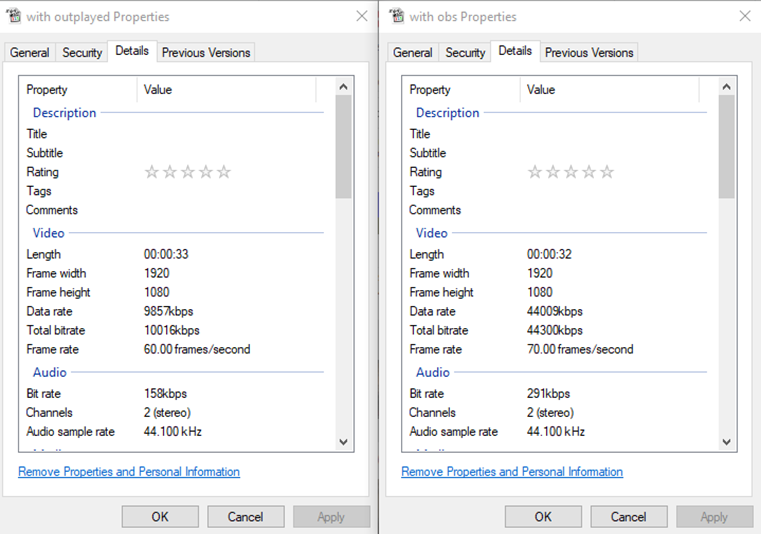
- Check for delays in sound. Try to record the same clip in your app and in OBS Studio and compare the files. Compare the properties of each file and verify that they are not recorded in a different framerates or bitrates.
 note
noteCurrently it isn't possible to only record specific channels (e.g., input from Discord and not other active sound sources).
Check if the drivers are up to date
You can find the details regarding the drivers being used in both the OBS log files and in the DxDiag (OBS logs are preferred). USe these methods to check each of the drivers:
AMD
AMD usually updates monthly, however, not all cards will get an update, especially if an older card is being used. To check the running version vs. the most up to date version, copy the number next to the Driver Version (e.g., “ Driver Version: 27.20.20903.8001”) and then search for the driver number. Verify through AMD's release notes what is the latest version of this driver.
Example of an update:

Intel
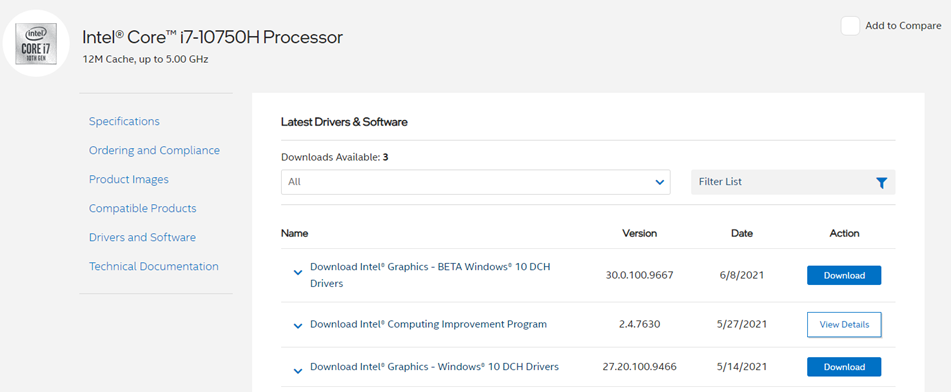
To check if an Intel driver is up to date, copy the processor model and search for it. You will be able to view the latest drivers available and compare that number with the users current driver.
Nvidia
Nvidia does not update frequently. To check the current version vs. the most up to date version, look at the version number and take note of the last 5 numbers. Then go to the Nvidia website [Hyperlink: https://www.nvidia.com/Download/index.aspx ] to look up the graphic card, then compare the version numbers.