Consent Management Platform (CMP)
A CMP makes it easier for you to meet the stricter legal requirements governing data collection in certain parts of the world. It helps you by handling the process of receiving consent to collect user cookies. This also allows you to show ads to users living in those areas.
OW-Electron comes with a built in CMP which your app can utilize out of the box. This allows you to:
- Check if a user needs to be informed of the CMP.
- Show the CMP itself (if necessary) and apply any settings needed to the entire OW-Electron package.
Users are then informed about the existence of the CMP, as well as where they can find it in the app.
Overwolf installer CMP mockup
Below is an interactive mockup of the Overwolf installer with the CMP:
Introducing the CMP to users
The CMP is broken down into two layers:
- First layer: the consent screen that summarizes the data processing activities and lets the user accept or reject consent.
- Second layer: the detailed privacy settings in the app's settings page, where the user manages each purpose and vendor.
Who shows the first layer depends on which installer you ship. The second layer is always yours to implement, in the app.
| Your installer | Who shows the first layer | What you implement |
|---|---|---|
| Overwolf Electron installer | The installer. The first layer is built into it. | The second layer only. |
| Your own installer | Your app. This is your responsibility. | The first layer in your app's FTUE, and the second layer. |
First layer
The first layer is the initial consent screen the user sees. Its main purpose is to inform and to offer a quick way to make a decision. The first layer provides:
- An explanation as to why their data is being collected.
- Shows that other companies may also process data.
- Gives clear, balanced buttons like Accept All and Manage Settings.
Overwolf installer
If your app uses the Overwolf Electron installer, the installer displays the first layer during installation, so you do not implement it. You still implement the second layer in the app: add a Manage toggle to your privacy settings that opens app.overwolf.openAdPrivacySettingsWindow();. The Overwolf installer handles the rest. Contact us for more details.
Your own installer
If you ship your own installer, showing the first layer is your responsibility, and it belongs in your app's FTUE, not in your installer.
Do not try to show the CMP first layer from your own installer. The CMP APIs, app.overwolf.isCMPRequired() and app.overwolf.openAdPrivacySettingsWindow();, are app-level ow-electron APIs. They exist only inside the installed app at runtime, so your installer process cannot call them. The earliest point you can show the first layer is the first launch of the app.
Implement it on first launch, before your app serves its first ad:
- On first launch, call
app.overwolf.isCMPRequired(). - If it returns
true, render the first layer as part of your FTUE, before the first ad is served. Use the example below for the content. - If it returns
false, let the user continue the FTUE without showing the first layer.
import { app } from 'electron';

// Run this on first launch, as part of your app's FTUE.
if (await app.overwolf.isCMPRequired()) {
  // Render your first layer here, before the app serves its first ad.
  // Its Manage button calls app.overwolf.openAdPrivacySettingsWindow()
  // to open the second layer.
}
app.overwolf.isCMPRequired() returns true where local law requires consent, typically for users in Europe. For a user outside those regions it returns false, and the FTUE continues without the first layer.
First layer content example. Overwolf does not render the first layer for you when you ship your own installer, so build the screen yourself and model its content on this. Link the {ad vendors} text to the vendors tab, and have the Manage button open the second layer.
{App Name} may display in-app ads to help provide you with a free high-quality app.
In order to deliver ads that are relevant for you, {App Name} and trusted {ad vendors}
store and/or access information on your computer, and process personal data such as IP address and cookies.
Click on the “Manage” button to control your consents,
or to object to the processing of your data when done on the basis of legitimate interest.
You can change your preferences at any time via the settings screen.

Purposes we use: Store and/or access information on a device,
personalized ads and content, ad and content measurement,
audience insights and product development.
Second layer
The second layer opens when the user wants to explore or adjust their settings in more detail. Typically this done using a Manage Settings or More Options button. This layer gives the user full control and transparency over how their data will be handled. The second layer provides:
- An explanation for the specific purpose of the data use.
- The option to turn each purpose on/off.
- Lets users control consent for each vendor individually.
- Describes special purposes and features.
Every app implements the second layer, whichever installer it ships. Add a manage toggle to the privacy settings which opens app.overwolf.openAdPrivacySettingsWindow(); in your app. Overwolf will then handle the changes.
The CMP and Privacy settings changes based on your the country you are in.
To access the second layer:
- In the app, the user must be able to access a Manage button in the app's settings.
- If you use the Overwolf installer, the user can also click the Manage button when prompted during installation.
Allowing users to access the CMP
Once the user has been introduced to the CMP, they must be able to find it if they ever wish to alter its settings.
This is usually achieved by having a clearly visible section in the app's settings, called Privacy, that shows the following when clicked:
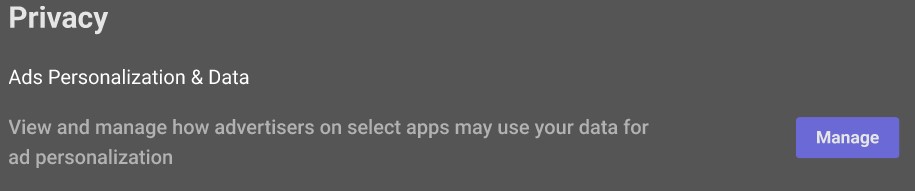
Clicking on Manage then opens the CMP window, in the same way that it was opened at the start.
CMP APIs
app.overwolf.isCMPRequired()
Returns whether or not a user is required to be informed about the CMP.
import { app } from 'electron';

await app.overwolf.isCMPRequired();
app.overwolf.openAdPrivacySettingsWindow();
Opens the Ad privacy settings window. Use with
CMPWindowOptionsobject.
CMPWindowOptions object
| Parameter | Type | Description |
|---|---|---|
purposes | enum purposes, features, vendors | Opens the CMP type tab. Default tab is Purposes. |
modal | bool | Whether this is a modal window. This only works when the window is a child. Default is true. |
parent | BrowserWindow | Specify parent window. Default is null. |
center | bool | Show window in the center of the screen. Default is true. |
backgroundColor | string | Control the CMP preloader background window. |
preLoaderSpinnerColor | string | Control the CMP preloader color (spinner). |
width | number | Control the CMP Window width. |
height | number | Control the CMP Window height. |
x | number | Control the CMP Window left position. |
y | number | Control the CMP Window top position. |
language | string | The language the CMP will be displayed in. |
Supported languages
Use the following table for the language parameter:
| Name | Key Code |
|---|---|
| English | en |
| German | de |
| Portuguese | pt |
| Spanish | es |
| French | fr |
| Italian | it |
| Polish | pl |
Example:
owElectronApp.overwolf.openAdPrivacySettingsWindow(
        {
          // Set color of the loading spinner.
          preLoaderSpinnerColor: '#ff0000',

          // Set the x position of the window.
          x: 0,

          // Set the y position of the window.
          y: 0,
        }
      );
app.overwolf.openCMPWindow()
Opens the built-in CMP window.
This API is deprecated. Use app.overwolf.openAdPrivacySettingsWindow() instead.
app.overwolf.openCMPWindow({
    // defaults to purposes if not defined
    tab?: ['purposes' | 'features' | 'vendors']
});
Using the CMP APIs
- When the app launches for the first time, call
app.overwolf.isCMPRequired(). - If
truereturns, display the first layer of the CMP during the app's FTUE. - If
falsereturns, let the user continue with the app's FTUE without showing the first layer. - Regardless of
app.overwolf.isCMPRequired(), implement a Privacy section in your app's settings. - Add a Manage button which calls
app.overwolf.openAdPrivacySettingsWindow();to open the second layer of the CMP. Show the button to every user. It does not need to be gated onapp.overwolf.isCMPRequired().